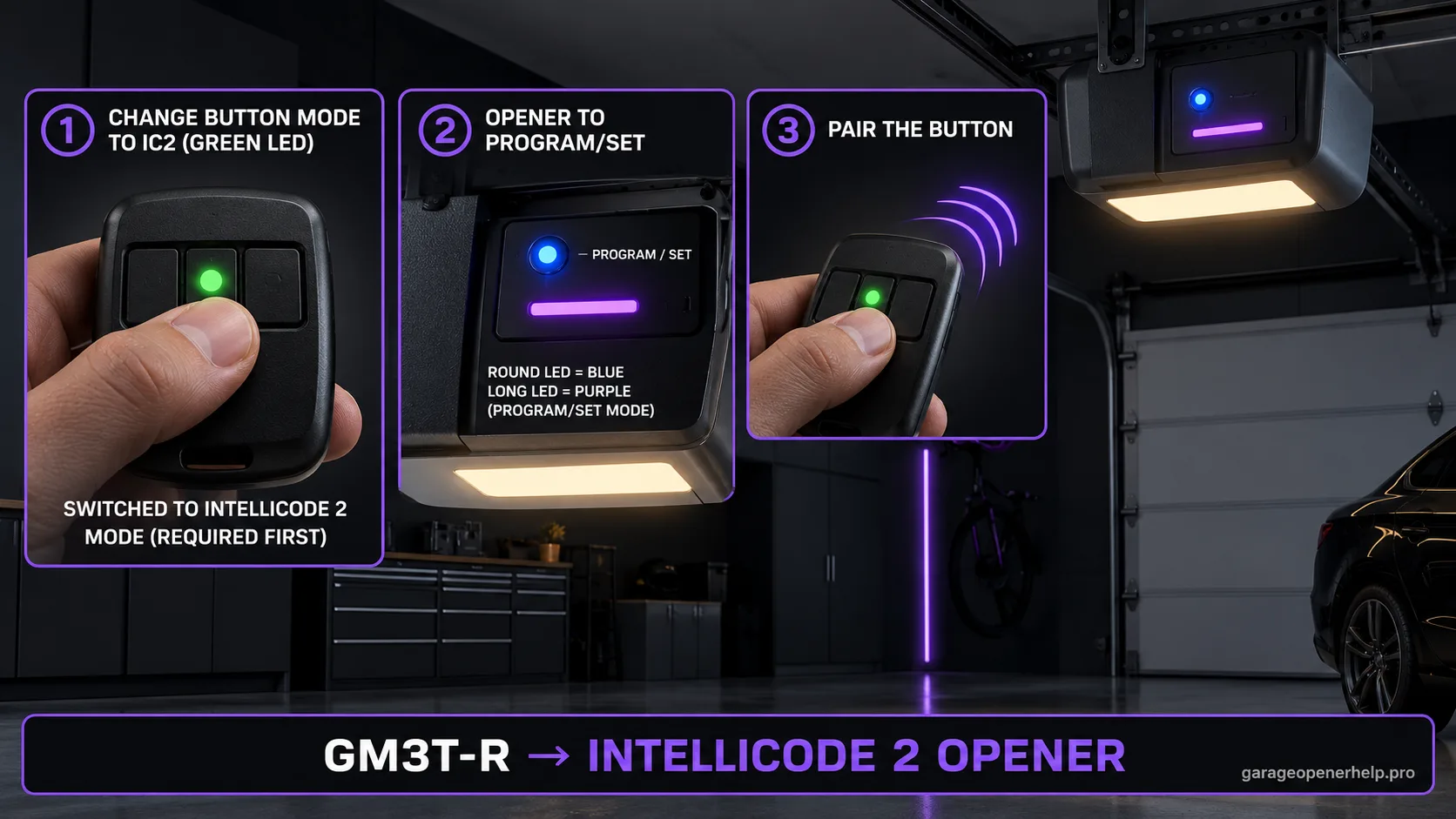
A GM3T-R button must be switched into Intellicode 2 mode before pairing. Genie identifies that mode with a green LED on the remote. After the mode change, put the opener into Program/Set mode until the round LED is blue and the long LED turns purple, then use the same remote button through the pairing sequence.
Keep Genie remote programming in the correct evidence order
Do you know the remote model and whether the opener uses Intellicode 1 or Intellicode 2?
Genie programming depends on the accessory and opener generation. Identify the exact remote first, put the opener into its documented learn/program mode, then test one programmed button before adding more accessories.
What you are likely to notice
- The target opener uses Intellicode 2 / Program-Set programming
- Your GM3T-R button is still showing the factory red Intellicode 1 state
- You need one GM3T-R button to operate an Intellicode 2 opener while leaving other buttons assigned elsewhere
Check these in order
1. Change only the selected GM3T-R button to Intellicode 2
Press and hold the chosen remote button. Genie says a steady red LED appears and, after about 10 seconds, a green LED also illuminates. Release the button, press and release that same button twice, then press it once more. A green remote LED while pressing confirms that button is now in Intellicode 2 mode.
2. Put the opener into Program/Set mode
At the opener, press and hold Program/Set for about two seconds or until the round LED turns blue. Release the control; Genie says the blue round LED goes out and the long LED turns purple.
3. Pair the same remote button
Press and release the selected GM3T-R button once, then press and release it a second time. After that second press, the opener LEDs should be off. Press the same button a third time to operate the door and confirm the pairing.
4. Reset the button only if you truly need Intellicode 1 again
The GM3T-R instructions provide a DEFAULT-button procedure that returns a chosen remote button to Intellicode 1 mode. Do not use that reset just because pairing failed once; first verify the opener technology and that the selected button is showing the expected green LED.
Intellicode 2 begins with a transmitter-mode change
The critical difference from Intellicode 1 is that the GM3T-R button does not begin in Intellicode 2 mode from the factory. Genie instructs the user to hold the selected button until red is joined by green, release it, press that same button twice, then press it again and verify a green LED. Only after that transmitter-mode change should the opener's Program/Set sequence begin.
Skipping this first phase can make a perfectly compatible remote look dead. The opener may enter its blue/purple programming state correctly, but a GM3T-R button still configured for Intellicode 1 is not following the documented Intellicode 2 pairing path.
Green remote LED and purple opener LED describe different things
The green light is on the GM3T-R and identifies the selected remote button's Intellicode 2 mode. The purple light is on the opener and indicates that the opener has entered its Program/Set pairing state. Mixing those indicators is an easy source of bad troubleshooting instructions because both colors appear in the same workflow but refer to different devices.
At each stage, look at the correct device: the remote in your hand for the green mode check, the opener powerhead for the blue-to-purple programming transition, then the same remote button again for pairing confirmation.
Resetting a GM3T-R button is not the first fix for failed pairing
Genie provides a DEFAULT-button procedure to return an individual remote button to Intellicode 1. That is useful when the assignment is intentionally being changed, but it should not be used automatically every time Intellicode 2 pairing fails. First verify the target opener technology, remote green-LED state and opener Program/Set state.
If all documented states are correct and the opener still does not acknowledge the transmitter, test with a fresh battery and use Genie model-specific support. Repeatedly toggling technology modes can obscure which state actually failed.
Stop DIY troubleshooting when…
- You cannot verify that the target opener uses Intellicode 2
- The GM3T-R button will not enter the documented green-LED mode
- The opener never enters the blue/purple Program/Set state
- The opener has a separate electrical or mechanical fault
Garage door springs, cables and a falling/unbalanced door can store or release dangerous force. Those are door-system problems, not just opener settings.
Common questions
How do I know a GM3T-R button is in Intellicode 2 mode?
Genie says the selected button should light the remote's green LED when pressed after the mode-change sequence.
Why does my Genie opener show a purple LED during GM3T-R setup?
In the documented Program/Set sequence, the opener's long LED turns purple after the round blue LED goes out. That is the opener-side pairing state, separate from the green Intellicode 2 indicator on the remote.
Can one GM3T-R button be Intellicode 2 while another remains Intellicode 1?
Genie's instructions describe changing the chosen button or buttons to Intellicode 2 mode, which allows button assignments to be managed individually. Use a separate assigned button for each opener.
Manufacturer sources used
These links are the factual baseline for the diagnostic claims above. Model-specific manuals can supersede general guidance.